Workspace and shell
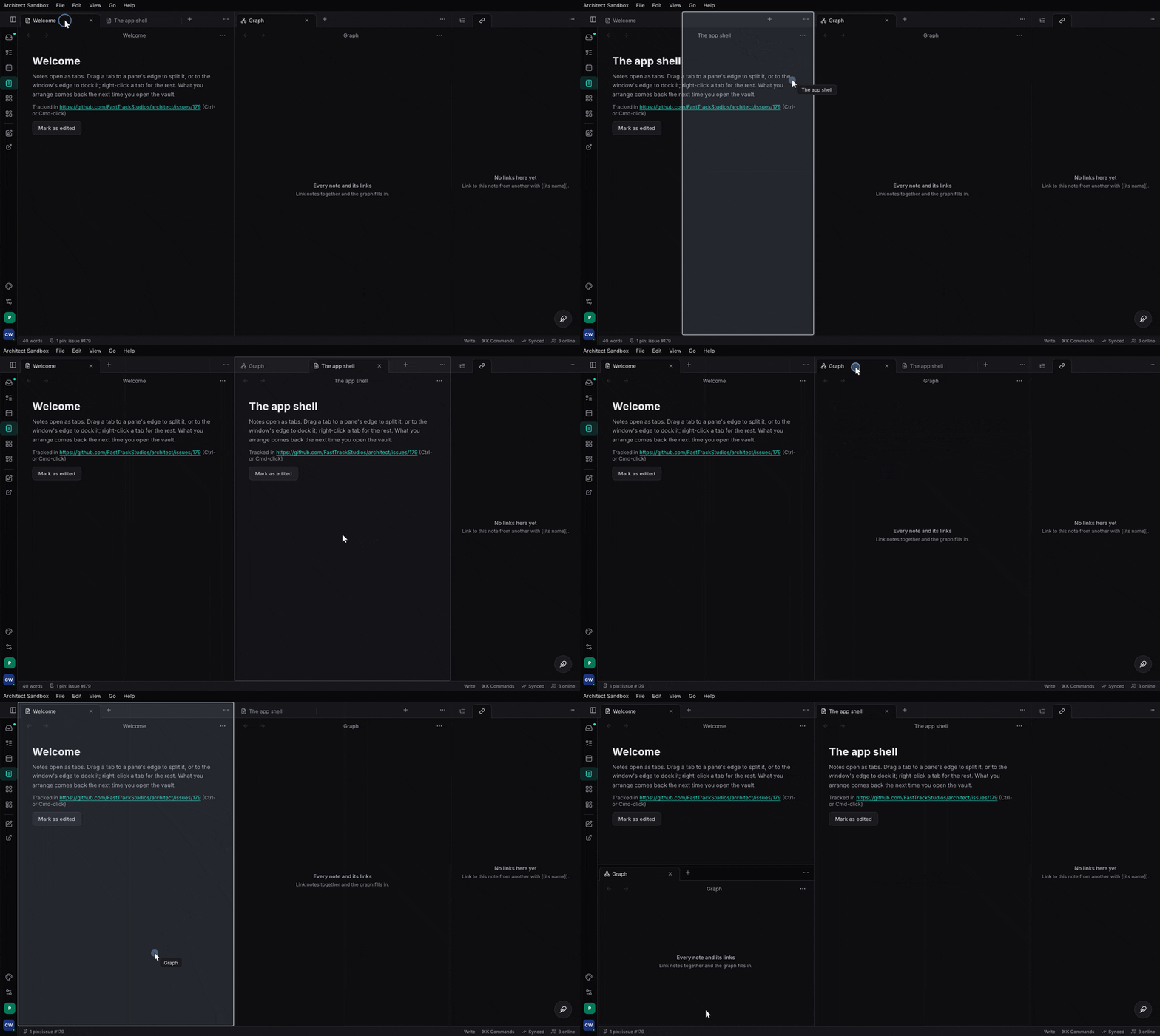
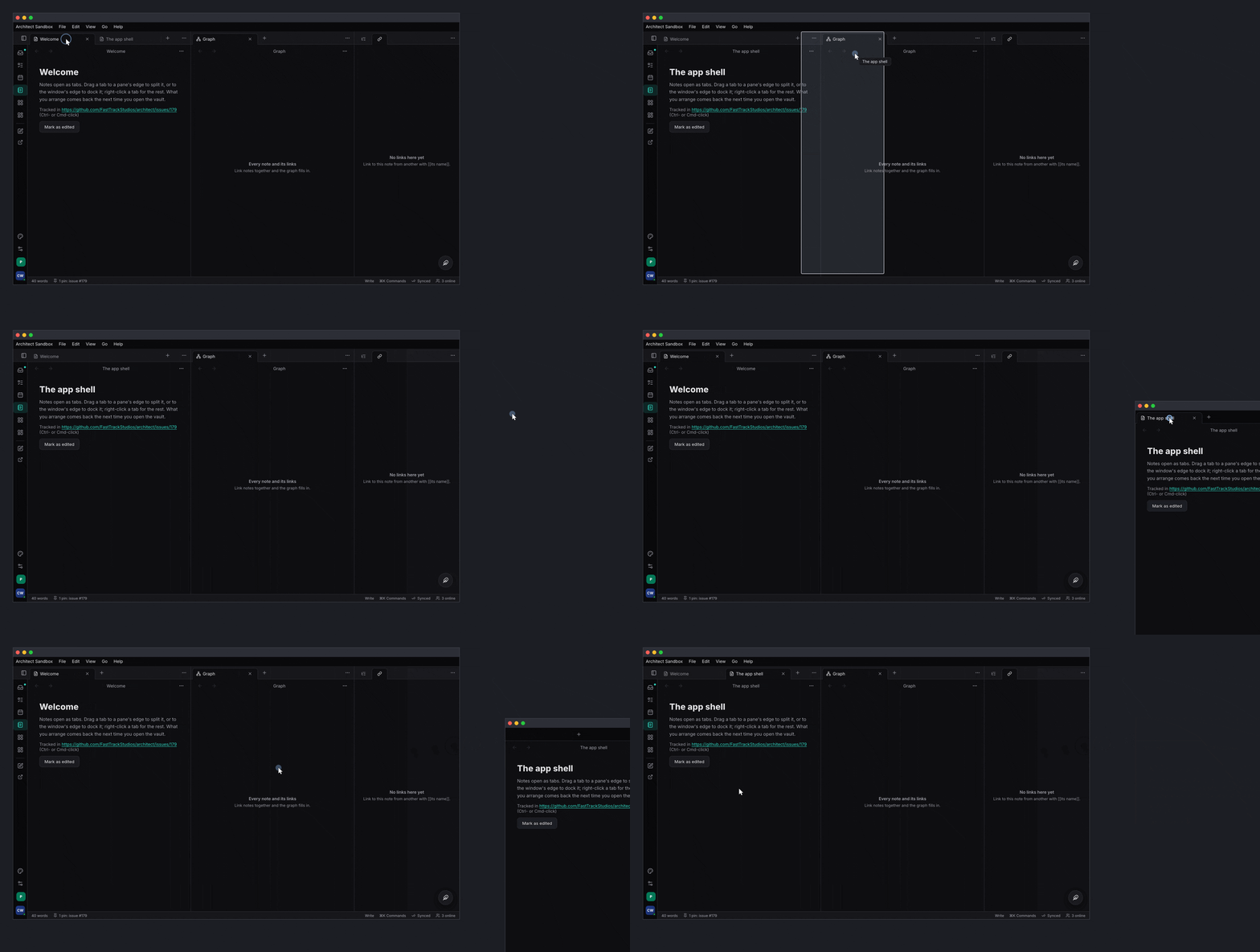
architect-workspace: tab groups in splits, docks, stacked tabs, floats, pop-out OS windows, stable pane ids and screensets; architect-shell: the app's frame on desk, tablet and phone.
What it is and when to use it#
architect-workspace is the layout an app’s views live in, in the manner of
Obsidian and REAPER: tab groups in splits, docks on each side with ribbons,
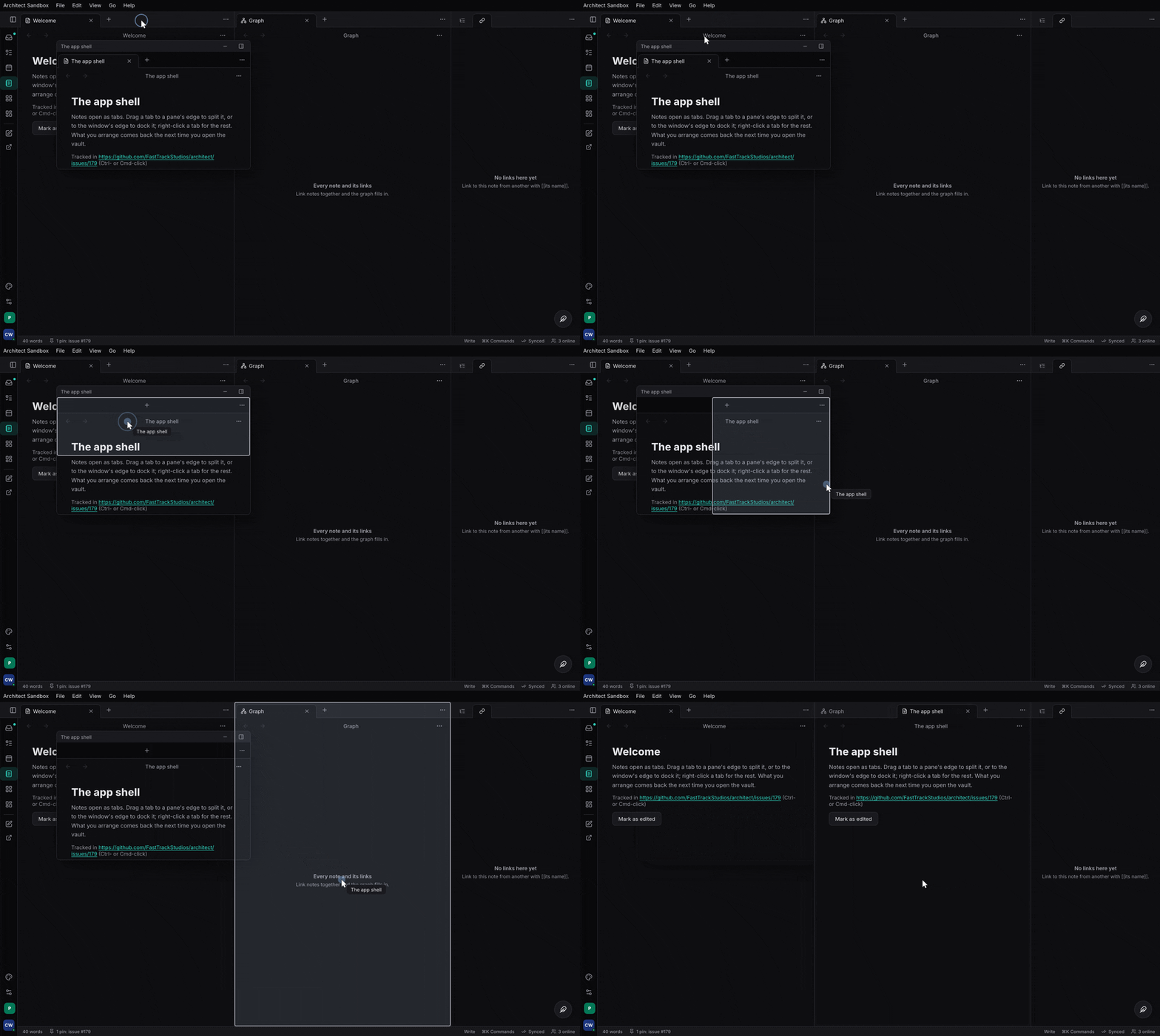
stacked tabs that slide over each other, floating panes, pop-out tabs as
real OS windows, and screensets (named layouts recalled with ⌘1–9, kept per
form factor). Panes have stable ids, so opening something already open
brings it forward. The model is plain data, and every operation ends in
Workspace::repair, so a layout is always valid. The app gives Views (a
kind, a title, how to draw it) and gets the whole workspace; it never lays
out panes.
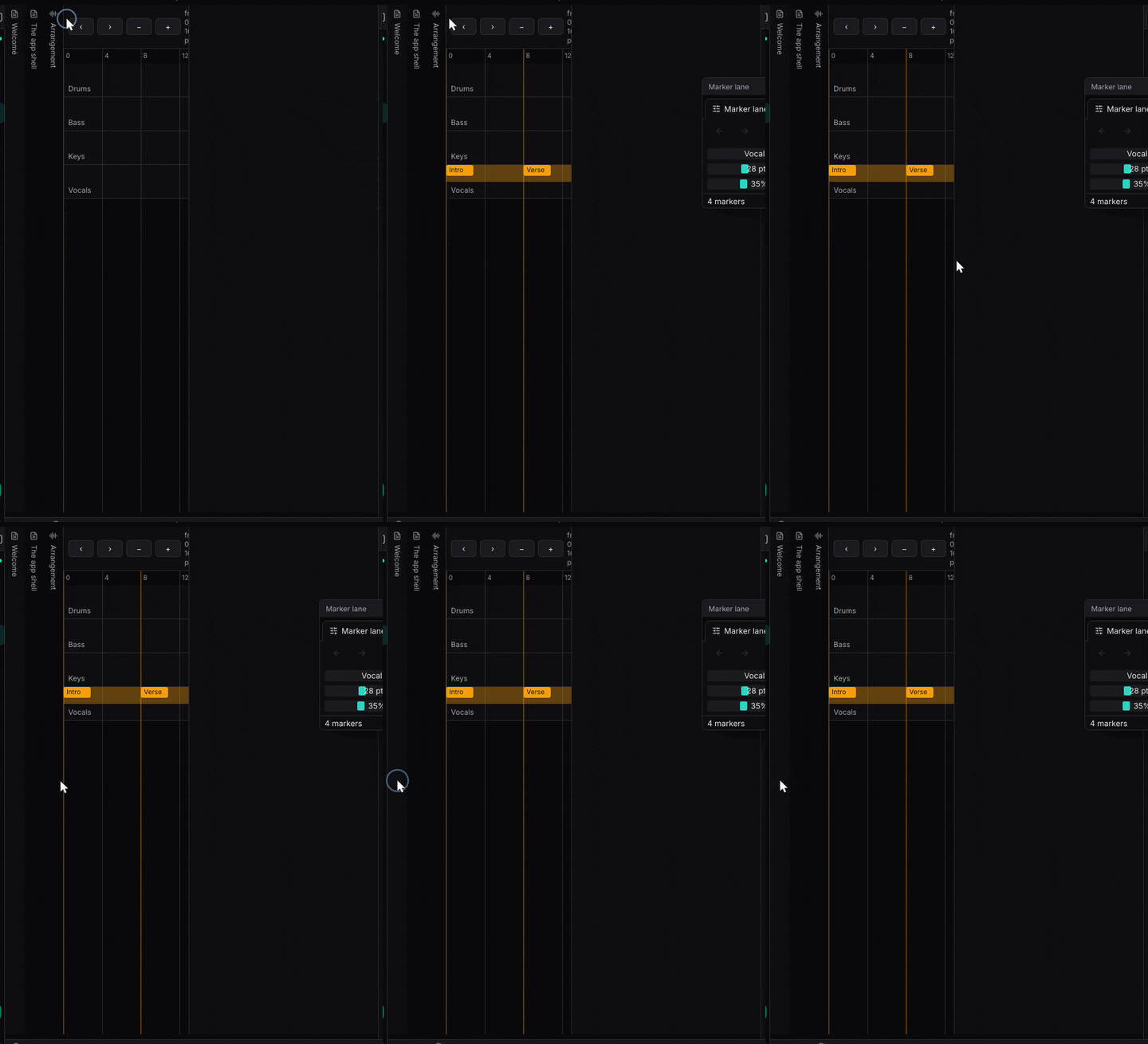
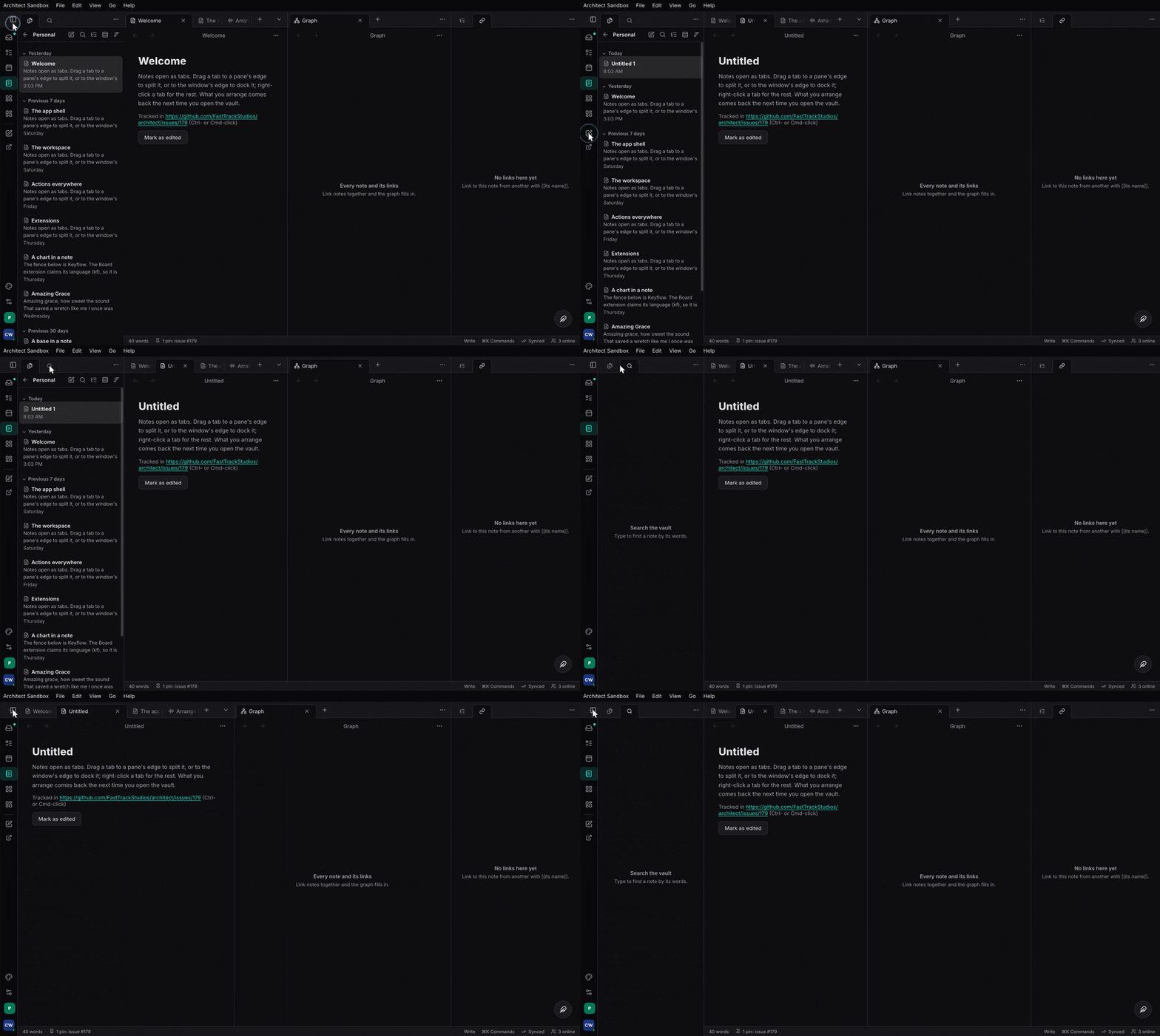
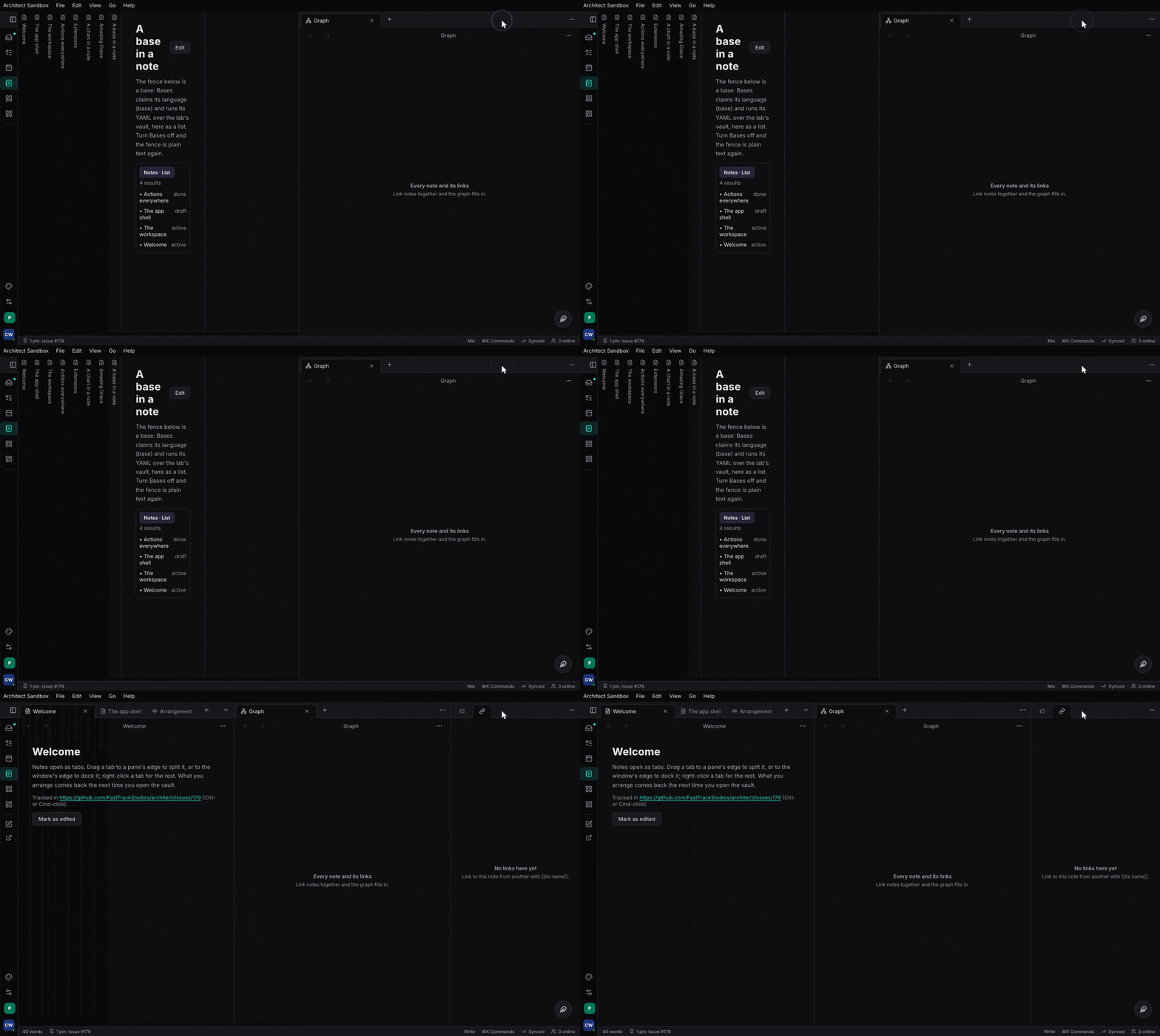
architect-shell is the frame around it: tabs as a rail, a sidebar or a
floating pill (with a separate button), drawers, the macOS title bar,
breadcrumbs and toolbars, the org and workspace switcher, the account, the
status line. Develop both in the sandbox, apps/sandbox (dx serve). Design:
Workspace, App shell
and Composing the UI.
A minimal example#
The model is in the default build (wasm-clean); ui is the Blitz host;
native the desk launcher with pop-out windows. Model, from
features/workspace/tests/workspace.rs:
use architect_workspace::{Pane, Side, Target, Workspace};

let mut ws = Workspace::new();
ws.open(Pane::new("note-1", "note", "Welcome"), Target::Tab)?;
ws.open(Pane::new("files", "files", "Files"), Target::Dock(Side::Left))?;
Host, after apps/ui/src/vault.rs VaultPage (which passes more props):
use architect_workspace::{MemoryStore, Screenset, Screensets, FormClass, Side, Target,
                          View, Views, WorkspaceStore, WorkspaceView};

#[component]
fn Vault() -> Element {
    let workspace = use_signal(first_workspace);
    let sets = use_signal(|| Screensets::default().with_builtins([
        Screenset::new("Write").slot(1).layout(FormClass::Desk, first_workspace()),
    ]));
    let views = use_hook(|| Views::new()
        .view(View::new("note", "Untitled", |pane| rsx! { NoteView { pane } }).many())
        .view(View::new("files", "Files", |_| rsx! { FilesView {} }).home(Target::Dock(Side::Left))));
    let store = use_hook(|| WorkspaceStore::new(MemoryStore::new()));
    rsx! { WorkspaceView { workspace, views, screensets: sets, store } }
}

// A desk app's main: architect_workspace::native::launch(App, window_attributes);
The frame is AppShell { screen, tabs, current, on_tab, .. } at the app’s
root, with the page as its children; a page adds status items with
use_status and claims the sidebar with use_shell_slots.
Code tour#
features/workspace/src/model.rsWorkspace,Pane,PaneId,Group,Node: the layout as data.features/workspace/src/ops.rsTarget,Dest,Workspace::open,Workspace::close_window,Workspace::to_main_window; andfeatures/workspace/src/repair.rsWorkspace::repair.features/workspace/src/screenset.rsScreensets(with_builtins,recall,recall_slot,save,save_named,rename,set_slot,is_dirty,menu_rows,options),FormClass;features/workspace/src/store.rsStore,MemoryStore,load_split/save_split(the saved sets where they are shared, the working copy on the device).- Saved layouts, the person’s “workspaces” (Obsidian’s Workspaces plugin):
WORKSPACES_LIST,WORKSPACES_LOAD {id|name|slot},WORKSPACES_SAVE {name?}(no name: the active set; a name: over the set of that name, or a new one),WORKSPACES_RENAME {id, name},WORKSPACES_SET_SLOT {id, slot?},WORKSPACES_OPTIONS {save_before_load?, slot_keys?},WORKSPACES_RESET, andWORKSPACES_DELETE {id}(destructive, so an agent gets a confirmation ticket), infeatures/workspace/src/control/write.rs. Each change of the saved sets is aChanged { topic: "workspaces" }event.WORKSPACES_MANAGEopens the sheet (features/workspace/src/host/manage.rsManageSheet): every set with Load, Save over, Rename, its ⌘ key, Delete, Reset, and a field to save the current layout under a name. The palette lists “Load workspace:” for every set. WorkspaceView’ssets_nounnames them per app (“Workspace” by default; Studio’s “Screenset”). features/workspace/src/drop.rsdrop_in,Barandfeatures/workspace/src/layout.rsarea_rects,neighbour,slides: where a dragged tab lands; stacked tabs sliding.features/workspace/src/host/mod.rsWorkspaceView,View,Views,use_pane,use_pane_status,TitleRow;features/workspace/src/host/commands.rsregisters theWORKSPACE_*commands.features/workspace/src/host/windows.rsWindowSystem,Popout,Bridgeandfeatures/workspace/src/native.rslaunch,launch_with_fonts.features/shell/src/shell/mod.rsAppShell,Tab,Action,Account,WindowChrome,use_shell_slots;features/shell/src/shell/page.rsPage,Toolbar,Breadcrumb;features/shell/src/shell/status.rsStatusItem,use_status;features/shell/src/screen.rsScreen,FormFactor.
A tab drag in WorkspaceView hit-tests the groups and bars with drop_in,
then moves the pane on the shared Signal<Workspace>; repair restores the
invariants, and the settled layout is written to the current screenset and
the app’s store. Dragged out of the window, the native launcher’s
WindowSystem opens a Popout: a second Dioxus document reading the same
signal, with the Bridge contexts carried into it. Closing that window gives
its tabs back to the main one.
Tests to read#
features/workspace/tests/workspace.rs: every operation and invariant, docks, floats, windows, history, screensets, the store round trip, drops, sliding stacked tabs.features/workspace/tests/actions.rs: every workspace action over MCP, the saved layouts (saved over by name, renamed, slotted, deleted, with their options and events), a set bringing back pop-out windows, dock sizes and visibility, floats and pinned tabs, and the split store.apps/sandbox/scenarios/workspaces-manage.styx: the manage sheet, played.features/workspace/tests/windows.rs: one document’s signal redraws another; a pop-out opens and gives its tabs back; a kept layout comes back on mount; a pane’s status items.features/workspace/tests/popout_theme.rs: a pop-out follows every theme change after it opens: its chrome (the host’sShellTheme, a signal it shares with the main window) and the theme’s CSS variables (the main window’s:rootsheet,architect_theme::RootCss, set on the pop-out’s root element).features/workspace/tests/inner_html.rs: a window’s document (native::document_config, the main window’s and every pop-out’s) parsesdangerous_inner_htmlinto nodes.- The shell has unit tests for form factors and frames only; it is checked by
eye in the sandbox,
apps/sandbox.
Status#
Done in architect. Not yet: dragging a tab onto a group in another window;
docks in pop-outs; the app’s chords inside a pop-out; saved layouts kept in
an org’s scope as team layouts. Every workspace operation is an Action List
action (docs/content/architecture/workspace.md). An app keeps the saved
sets in its settings scope of choice by passing a store over it (and a
device_store for the working copy). Blitz differences found building these are in
skills/architect/references/blitz-quirks.md.
- Task has its own shell (
task:crates/ui/src/shell/app_shell.rs, the design reference forarchitect-shell); to adopt both crates. - Studio has its own dock (
studio:features/ui/dock, the starting point for the workspace); to adopt both crates.