The app shell and the workspace
Mount architect-shell at the root, give it tabs, sides and a status line, then hand architect-workspace your views and get tab groups, splits, docks, floats, pop-out windows and screensets.
In this chapter you put an app inside architect’s frame. You will:
- mount
AppShellonce at the root, with tabs, a separate button, an account and the two sides; - give each page a
PageorPageBar(its title, main action and ⋯ menu); - put facts on the status line;
- hand
architect-workspaceyour views and get a workspace a person arranges themselves: tab groups, splits, docks, floats, pop-out windows and screensets, kept through a store; - launch it on a desk through the workspace’s launcher, so pop-outs are real OS windows.
The living reference for every step is the sandbox, apps/sandbox: the Architect app on made-up data
in Task’s shape (Inbox, Tasks, Schedule and Vault tabs, Capture as the
separate button) whose Vault tab is the workspace host. Run it while you
read:
cd apps/sandbox
dx serve --platform desktop --renderer native
# standing in for a device: iphone, iphone-side, ipad or ipad-side
ARCHITECT_DEVICE=ipad dx serve --platform desktop --renderer native
apps/sandbox/README.md has the iOS simulator steps.
Blitz first, the browser too#
FastTrackStudio’s apps paint through Blitz (dioxus-native: Stylo,
Taffy, Parley, Vello), not a web view: Studio’s windows, its plugins and
its iPhone app. The shell and the workspace are written so they render the
same in Blitz as in a browser:
- everything is laid out with inline styles, colours and type from
ShellTheme(no external stylesheet, which Blitz does not load); - bars, drawers, menus and floats are positioned against the shell’s root,
which fills the window (Blitz has no
position: fixedorsticky); - safe-area insets come from the host through
Screen, notenv(); - every drag is pointer events and measured rects (Blitz has no drag-and-drop events).
What differs by renderer is what the platform gives: real pop-out windows need the desk launcher (below); without it (a browser) a pop-out kept in a layout shows as a chip that brings its tabs back.
What building the shell and the sandbox found Blitz doing differently from a
browser (dropped spaces between spans, no ch unit, no placeholder, no
title tooltips, @font-face from a data: URI never loading, keys only
reaching the focused node) is recorded with the fix for each in
skills/architect/references/blitz-quirks.md. Read it before you write
your first view.
1. The screen#
The shell lays out for a form factor, and form factors are sizes, not
devices (features/shell/src/screen.rs FormFactor::of): upright and
narrower than 700pt, or on its side and shorter than 500pt, is a phone;
anything larger is a tablet under a finger and a desk under a mouse.
The host publishes a Screen (width, height, touch, insets) and the shell
reads it. The sandbox keeps one in a Signal<Screen> from the window’s size
(apps/ui/src/screen.rs use_window_screen) and reads it at the root:
let screen = use_context::<Signal<shell::Screen>>();
Screen::form() and Screen::landscape() are what your own views branch
on too, rather than a platform check.
2. Mount AppShell#
AppShell (features/shell/src/shell/mod.rs, feature ui of
architect-shell) is mounted once and fills its parent, which must be
positioned (the window’s root, inset: 0). The sandbox’s root,
apps/ui/src/lib.rs LabApp:
AppShell {
    screen: screen(),
    style: (lab.style)(),                 // FloatingPill, TabBar or RailOnly
    title: "Architect Lab",
    tabs,                                 // Vec<Tab>: the first four are the bar
    current: Some(route.tab()),
    on_tab: move |id| lab.jump(Route::Tab(id)),
    separate: capture,                    // Option<Action>: the button set apart
    brand: rsx! { Brand {} },
    account: shell::Account::new("Cody Wright")
        .detail("cody@fasttrackstudio.app")
        .menu(shell::Menu::new().item("Settings", icon!(Settings2), move |()| settings.show(None))),
    workspaces,                           // the org / workspace switcher
    left: rsx! { pages::LeftSide {} },
    right: if (lab.right)() { Some(rsx! { pages::RightSide {} }) } else { None },
    on_pull: move |()| lab.jump(Route::Tab("vault")),
    window: window_chrome,                // a desk window that draws its own title bar
    status,
    status_style: (lab.status)(),
    match route { /* the page */ }
}
What each slot becomes depends on the form factor:
| Slot | Phone | Tablet / desk |
|---|---|---|
tabs | a floating pill at the bottom (upright), a rail (on its side) | the sidebar’s head, or the ribbon |
separate | round, beside the pill | floating, or in the top bar |
left / right | drawers, a swipe away | docked, resizable; the right one over the page below 1100pt |
status | — | a bar along the foot (StatusStyle::Bar) or a corner badge (StatusStyle::Badge) |
ShellStyle changes how the slots look, never which slots there are, so
an app can switch style without touching a page (the sandbox does it from a
setting). Routing stays yours: the shell is told the current tab and calls
on_tab.
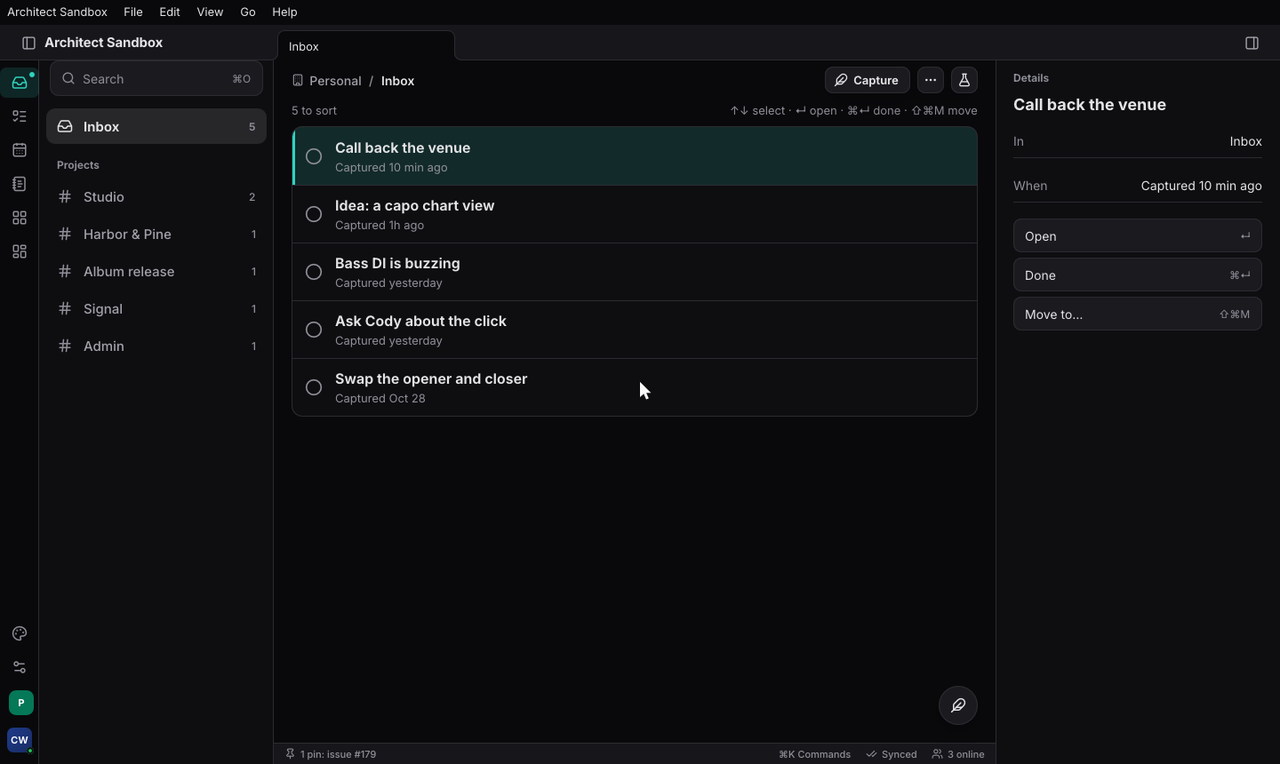
A Tab is an id, a label and an icon: Tab::new("inbox", "Inbox", icon!(Inbox)).badge(5). An Action is a label, an icon and a press:
Action::new("Capture", icon!(Feather), move |()| capture()).
On a desk: the title bar#
On a desk the shell draws the window’s title row itself (Obsidian’s
frame): the traffic lights placed in it on macOS
(features/shell/src/shell/mac.rs fit_traffic_lights), the ribbon down
the left edge (RIBBON), one sidebar, and the status line. Pass a
WindowChrome (WindowChrome::mac(on_drag, on_zoom)) for a window that
draws its own bar; the sandbox builds it in apps/ui/src/screen.rs
use_window_chrome, which also follows full screen through window events
(a Blitz quirk). The window itself is created with a transparent,
full-size title bar (apps/desktop/src/main.rs).
3. A page#
A page states its title, main action and ⋯ menu once; the shell draws them wherever the form factor puts them. A page never builds its own top bar.
use architect_shell::{icon, Action, Menu, Page};

rsx! {
    Page {
        title: "Tasks",
        action: Action::new("New task", icon!(Plus), move |_| new_task()),
        menu: Menu::new()
            .item("Filter", icon!(Funnel), move |_| filter.open()).note("2 on")
            .item("Sort", icon!(ArrowUpDown), move |_| sort.open())
            .divider()
            .check("Show done", show_done(), move |_| show_done.toggle()),
        TaskList {}
    }
}
That is the crate’s own example (features/shell/src/lib.rs). PageBar
is the bar alone, for a page that lays out its body itself (the sandbox’s
Vault, apps/ui/src/vault.rs VaultPage); Toolbar and Breadcrumb
(features/shell/src/shell/page.rs) are the header’s other parts.
A page that fills a side claims it while mounted:
use_shell_slots(left, rail) replaces the app’s left side (the workspace
uses it to put its left dock in the shell’s sidebar). use_shell() gives
the Shell handle: the form factor, open(side), toggle(side),
desk(), and the title row’s measurements.
4. The status line#
A status item is a fact or a switch: text, an icon, a dot, a press
(features/shell/src/shell/status.rs StatusItem). The app’s go on
AppShell { status }; a page adds its own while mounted:
architect_shell::use_status(vec![
    StatusItem::new("panes", "3 panes").left(),
    StatusItem::new("screenset", "Write").hint("⌘1 Write, ⌘2 Mix"),
]);
5. The workspace#
architect-workspace (features/workspace) is what fills the page area
on a tablet and a desk. The default build is the model, pure data
(features/workspace/src/model.rs Workspace, Window, Group, Pane,
Docks, Float); ui is the host that draws it and turns drags into
operations; native adds pop-out OS windows.
Views#
You hand it views: what a pane can show. From the sandbox’s Vault:
use architect_workspace::{Side, Target, View, Views};

fn views() -> Views {
    Views::new()
        .view(
            View::new("files", "Files", |_| rsx! { FilesView {} })
                .icon(icon!(Files))
                .home(Target::Dock(Side::Left)),   // where it opens by default
        )
        .view(
            View::new("console", "Console", |_| rsx! { Console {} })
                .icon(icon!(Terminal))
                .home(Target::Dock(Side::Bottom)),
        )
        .view(View::new("note", "Untitled", |_| rsx! { NoteView {} }))
}
Return a component from the render closure, so the pane’s hooks are its own. A view kind that is no longer registered (a plugin uninstalled) keeps its pane as a placeholder with its state until the view comes back.
The layout as a value#
A layout is a Workspace value, built with the same operations every
gesture comes down to (features/workspace/src/ops.rs). The Vault’s first
layout, shortened (apps/ui/src/vault.rs first_workspace):
fn first_workspace() -> Workspace {
    let mut w = Workspace::new();
    let _ = w.open(Pane::new("note-welcome", "note", "Welcome"), Target::Tab);
    let _ = w.open(Pane::new("graph", "graph", "Graph"), Target::Split(Side::Right));
    let _ = w.open(Pane::new("files", "files", "Files"), Target::Dock(Side::Left));
    w
}
Target is where a pane goes: Here (in place of the active tab unless it
is pinned), Tab, Split(side), Window(rect), Dock(side) or
Float(rect). move_pane, close, reopen, pin and minimise are the
rest; after each the workspace is repaired to its invariants
(features/workspace/src/repair.rs: a pane in exactly one group, empty
groups gone, one-child splits collapsed).
Screensets#
A Screenset is a layout kept under a name, one per form class (desk;
tablet and phone, upright and on their side). ⌘1–9 recall them by slot.
The Vault ships two:
fn screensets() -> Screensets {
    Screensets::default().with_builtins([
        Screenset::new("Write").slot(1).layout(FormClass::Desk, first_workspace()),
        Screenset::new("Mix").slot(2).layout(FormClass::Desk, mix_workspace()),
    ])
}
Screensets::menu_rows turns them into a live menu section (the
commands chapter shows menus).
Mount the host#
let workspace = use_signal(first_workspace);
let sets = use_signal(screensets);
let store = use_root_context(|| VaultStore(WorkspaceStore::new(MemoryStore::new()))).0;
let pane_status = use_signal(Vec::new);
let views = use_hook(views);

rsx! {
    WorkspaceView {
        workspace,
        views,
        commands,                     // ribbon commands (Command::new(id, label, icon))
        on_command,
        phone: screen.form() == FormFactor::Phone,
        coarse: screen.touch,         // 44pt targets under a finger
        title_row,                    // on a desk: the tabs are the window's title row
        in_shell: shell.desk(),       // the left dock lives in the shell's sidebar
        screensets: sets,
        store,
        status: pane_status,          // the current pane's own status items
        form: screen_class(&screen),
    }
}
That is apps/ui/src/vault.rs VaultPage, trimmed. What a person gets
from it without the app writing any of it:
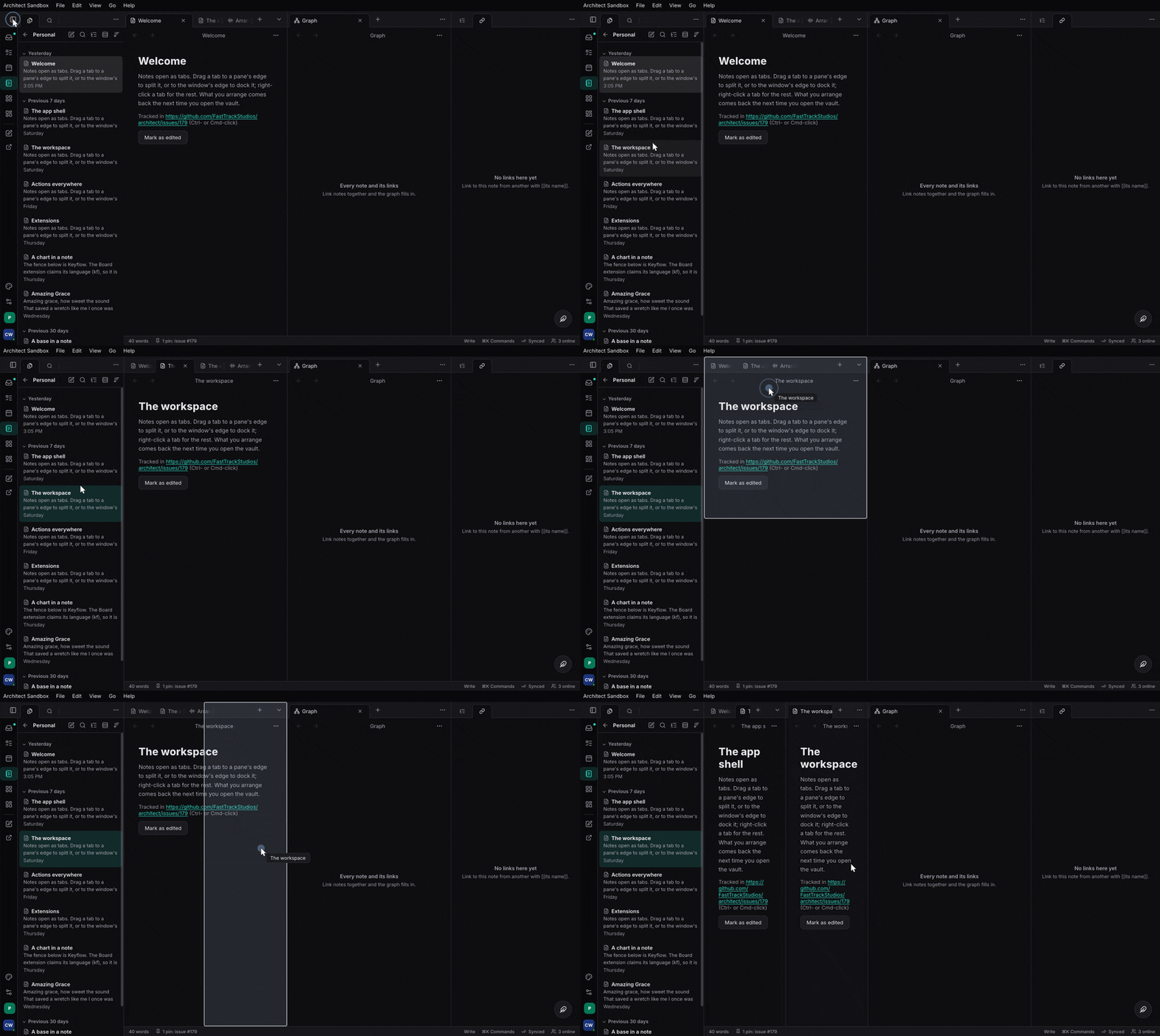
- tab groups with a + and a menu; drag a tab onto a group’s middle, edge or tab bar, or onto the window’s edge to dock it;
- left, right and bottom docks behind a ribbon (the two-stage sidebar);
- stacked tabs (a group’s menu turns the sliding strip on);
- floats: drag, snap to an edge, minimise to a chip;
- hold W to grab a pane that has no tab bar;
- reopen a closed tab (⌘⇧T), back and forward per tab;
- the workspace’s own commands (
WORKSPACE_CLOSE_TAB,WORKSPACE_NEXT_TAB, …,features/workspace/src/host/commands.rs), which a menu or a key can name; - on a phone, one pane at a time with a switcher.
Persistence through a store#
The host reads the store once when it mounts and writes it when the
workspace settles, not on every frame of a drag. A store keeps one JSON
document (features/workspace/src/store.rs Store: load and save):
every screenset, the active one, and the live layout per form class.
MemoryStore keeps it for the run (the sandbox’s choice); implement Store
over the device’s settings, the person’s synced settings, or a project’s
document to keep it longer.
Inside a view#
#[component]
fn NoteView() -> Element {
    let pane = use_pane();
    let edits: u32 = pane.state().parse().unwrap_or(0);
    use_pane_status(vec![StatusItem::new("words", "3 words in the title").left()]);
    rsx! {
        button { onclick: move |_| pane.set_state((edits + 1).to_string()), "Mark as edited" }
    }
}
use_pane() is the pane’s PaneHandle: its title, its state (an opaque
string the view owns, kept in the layout), and the workspace to open other
panes from (pane.workspace().write().open(..)). use_pane_status puts
items on the status line while that pane is the current document, and
takes them away when it is not.
The presence overlay layer#
A view that shows where collaborators are mounts a PresenceLayer as its
last child (features/workspace/src/host/presence.rs):
let overlay = use_presence_overlay();
overlay.set(marks);   // PresenceMarks: pointers, washes, playheads, in this view's pixels
rsx! { div { /* the view */ } PresenceLayer { overlay } }
The layer covers exactly the pane and takes no pointer events. Where the marks come from (a document’s roster) is in the documents chapter.
6. Pop-out windows: the desk launcher#
dioxus-native opens one window, at start. To let a tab dragged out of the
window (or “Move to new window”) become a real OS window, launch through
the workspace’s launcher instead of dioxus_native::launch
(features/workspace/src/native.rs launch, feature native):
fn main() {
    let window = WindowAttributes::default()
        .with_title("Architect — app shell lab")
        .with_surface_size(LogicalSize::new(1280.0, 820.0));
    architect_workspace::native::launch_with_fonts(App, window, architect_app::FONTS);
}
That is apps/desktop/src/main.rs. launch_with_fonts also registers
the app’s fonts in every window’s font context, which is how a bundled face
loads in Blitz at all. Each pop-out is a Blitz view with its own document
and VirtualDom, its root the host’s Popout, reading the main window’s
Signal<Workspace>; the shell’s and the commands’ contexts are carried
into it, and an app’s own go through WorkspaceView { bridge } (Bridge).
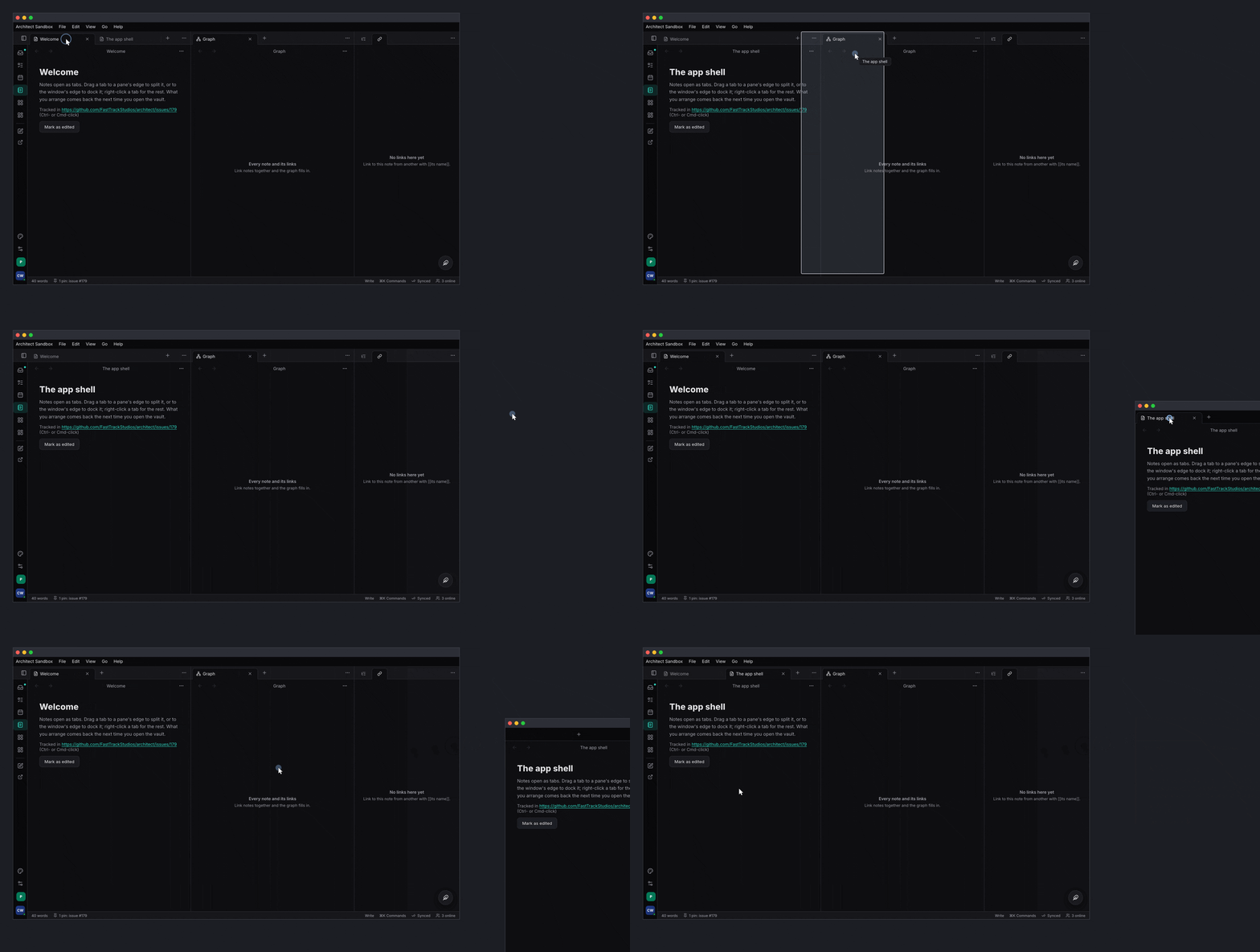
Limits today, from the code: chords (WindowKeys) are heard in the main
window only; pop-outs have no docks; a tab dragged onto a group in another
window joins that window’s first group.
Where Task and Studio are#
The shell and the workspace are architect-side today. Task still draws its
own shell (task:crates/ui/src/shell/app_shell.rs), and Studio its own
app bar and dock (studio:features/ui/dock); moving each onto
AppShell and WorkspaceView is their work, Task first, one piece at a
time.
Where to read more#
- The UI primitives: the next chapter, every
part the shell, the workspace, the commands, settings and
architect-uiship, onersx!each. - The app shell: the slots, every form factor’s layout, the desk frame, touch in Blitz on iOS.
- The workspace: the model, the operations, floating windows, window ids, pointer and form-factor sizing.
- Composing the UI: routing and how features contribute UI.
skills/architect/references/blitz-quirks.mdandskills/architect/references/architect-ui.md.
Linked from
- Build an app with architectA chapter-by-chapter walk through building a real app on architect: the contract, the backend, the server, the clients, the tests and the release.
- The UI primitivesWhat architect ships to draw an app with: architect-ui's components and theme tokens, the shell's page parts, every kind of tab and pane in the workspace, the commands overlays, the settings page, and architect-story to browse them.
- Documents, sync and filesAn app's work as CRDT documents: kinds and named undo, the document file, sync to the org through the org driver, peer to peer by link and on the LAN, presence and collaborative text, blobs by hash, and Files.
- Sign-in, permissions and organizationsSign a person in against the one identity server, keep the session and register the device; gate every service call with PermissionsGate; and make the organization the scope of everything, on the client and confined on the server.